
Last updated: August 19, 2026
What is a Planogram Template?
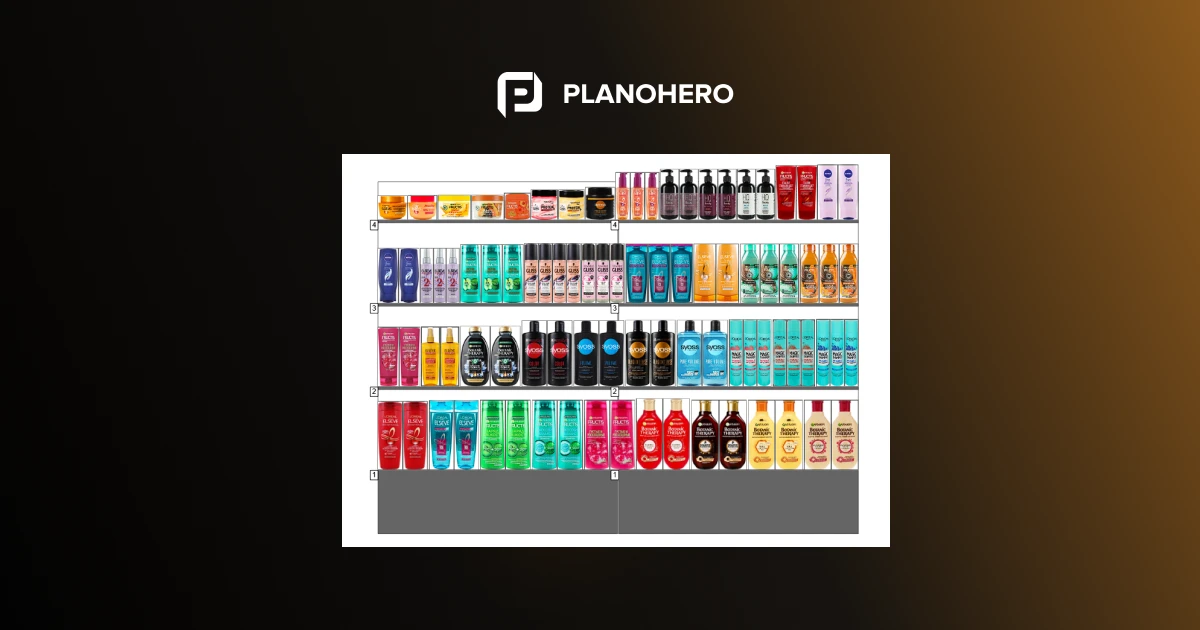
A planogram — also called a POG (short for "plan-o-gram") — is a schematic showing exactly where each product goes on a shelf, rack, or display. A planogram template is a starting version of that schematic: a pre-built layout for a specific category, fixture, or campaign that merchandisers reuse and adapt instead of building every layout from scratch.
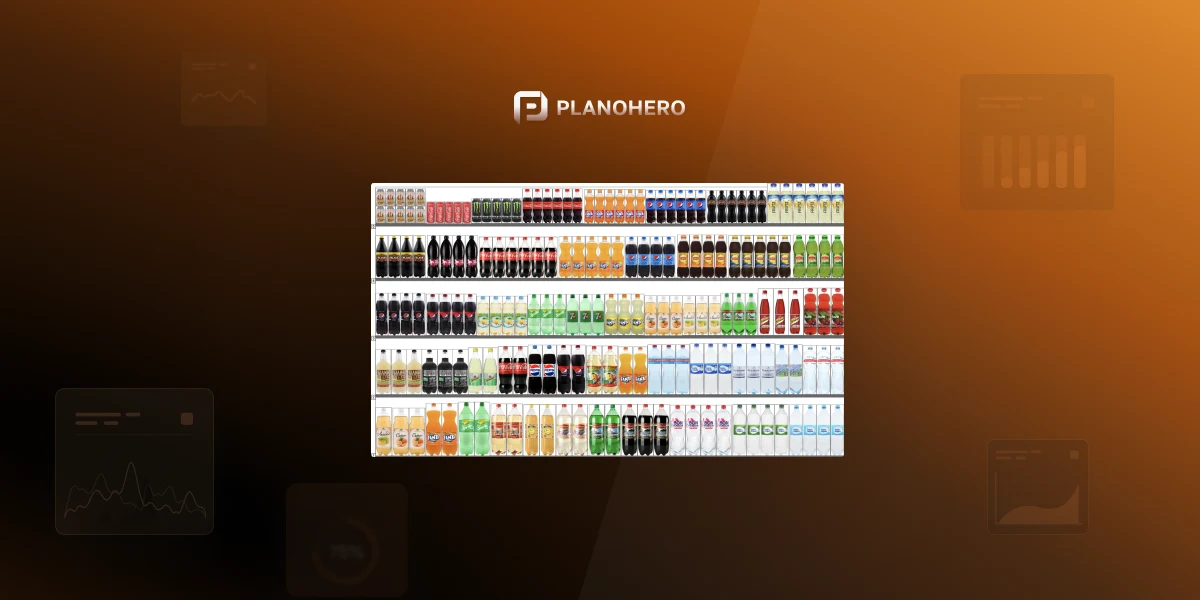
Instead of creating every layout from scratch, merchandisers use templates as a starting point to speed up the planogramming process and maintain consistency across stores. These templates serve as visual blueprints that illustrate how products from a given category, brand, or promotional campaign should be arranged on the shelf. For example, a planogram template for beverages may show how to position water, soft drinks, and energy drinks on a standard rack according to size, brand, or popularity.
Why Merchandisers Use Planogram Templates
To work faster with shelf layouts, merchandisers often create planogram templates for:
- Specific product categories (e.g., dairy, snacks, cosmetics)
- Seasonal or promotional campaigns
- Certain shelving units or retail equipment
This approach eliminates repetitive work and ensures structured placement that meets planogram compliance. While it's possible to build templates manually in spreadsheets or graphic programs, this process is time-consuming and prone to errors.
Instead, many professionals choose specialized planogram software that provides ready-to-use templates or allows you to create your own. These solutions save hours of planning and allow teams to update layouts quickly based on real-time sales data and store needs.
How to Create an Effective Planogram Template
Designing a planogram template is not just about arranging products; it involves analyzing data and understanding consumer behavior. Here are key steps:
1. Collect Retail Data
A planogram template built on a hunch tends to fall apart the moment it hits the sales floor. Before you place a single product, it helps to pull together three things:
- What's actually selling — which products move fastest, in what quantities, and at which locations, so the template reflects real demand rather than assumptions.
- What the shelf currently looks like — existing facings, competitor placement nearby, and any physical constraints of the fixture itself.
- How past layouts actually performed in-store — whether previous templates were followed as designed, and what changed when they weren't.
Combining these gives you a clearer picture of why certain products perform better where they do, and what's realistic to replicate across other stores.
2. Define Product Categories
Organize products by type, size, or brand. For example:
- Personal care items together
- Cleaning supplies grouped by usage
- Snacks and beverages placed in high-traffic zones
3. Structure Templates by Equipment Type
Category isn't the only useful way to organize templates — the fixture itself usually determines the layout rules you're working within. Common equipment-based template types include:
- Gondola templates — standard double-sided shelving units, typically the default template for most grocery and FMCG categories.
- Cooler and fridge templates — account for vertical cold-chain constraints and are commonly split into drink coolers, combo coolers, and single-door fridge layouts.
- Endcap templates — shorter, high-visibility displays at the end of an aisle, usually built around a single promotion or campaign rather than a full category.
- Island and freestanding display templates — used for high-traffic focal points, often for new product launches or impulse-buy categories.
- Seasonal templates — reusable layouts built for a recurring period (holiday, back-to-school) that get activated and deactivated rather than rebuilt each year.
Keeping a small library of templates by fixture type, alongside your category-based templates, makes it faster to roll out a new store format or seasonal reset without redesigning the layout logic each time.
4. Use Professional Tools
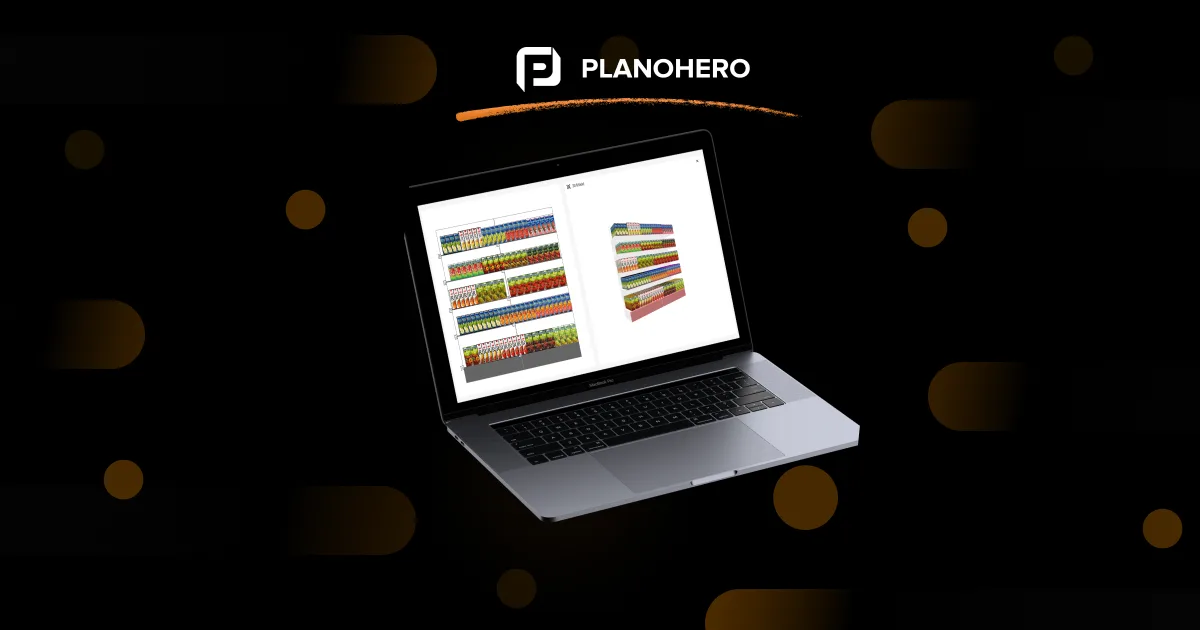
Building planogram templates manually in spreadsheets or design software works, but it's slow and easy to get wrong at scale. Software like PlanoHero speeds this up by providing planogram templates you can test and customize directly, based on your store's actual dimensions and equipment.
Common Planogram Template Formats: Excel, PowerPoint, PSD, and Software
Not every team needs full planogramming software right away, and it's worth being upfront about the options:
- Excel/Google Sheets templates are the simplest starting point — a grid where each cell represents shelf space. A free planogram template in this format works fine for a single store or a small, static assortment, and costs nothing beyond the spreadsheet itself.
- PowerPoint/Keynote templates are useful for presenting a proposed layout to suppliers or management, but they're a visual mockup rather than something that stays connected to real sales or stock data.
- PSD and vector templates are aimed at designers producing a polished visual for a pitch or print material, not for day-to-day merchandising work.
- Dedicated planogram software (like PlanoHero, or similar platforms) is where templates stop being static files. The layout is tied to your actual product data, so it can be generated or adjusted based on sales performance, distributed to multiple stores at once, and checked against what's actually on the shelf through photo-based compliance reports.
None of these formats is "wrong" — a five-store chain doing a one-off reset might genuinely be fine with a spreadsheet. The trade-off shows up at scale: a spreadsheet or slide doesn't update itself when a SKU changes, doesn't flag when a store hasn't implemented the layout, and doesn't scale cleanly across dozens or hundreds of locations. That's the specific gap that dedicated planogram software is built to close.
Planogram Templates in PlanoHero
PlanoHero offers a 14-day free trial that gives access to its planogramming features — a practical way to get a free planogram template for your category up and running before deciding whether to commit. During the trial, you can:
- Design Planograms — Organize categories like household chemicals, personal care, snacks, and more into structured shelf plans.


- Manage Equipment — Use templates for racks, gondolas, island stands, and fridges, or create your own custom equipment.

- Add Products — Upload your product catalog with details such as name, article number, barcode, product type, and last-change tracking, so your assortment stays structured and planogram execution stays accurate across store formats.

The trial includes ready-made templates for categories such as food and beverages, clothing and footwear, toys and baby products, mobile devices and accessories, jewelry and cosmetics, home goods and décor, and pet supplies. If you'd rather see finished examples before building your own, the planogram gallery has real templates across these same categories.
Additional Benefits of Using a Planogram Template
Using a planogram template brings a clear advantage by creating consistency across every store, so customers encounter the same logical and appealing arrangement no matter where they shop. It also saves time by replacing manual work with structured templates, allowing teams to focus on execution rather than planning from scratch. Beyond the visual aspect, these templates connect critical data like sales and stock levels, ensuring merchandising decisions are based on facts, not guesswork. Collaboration becomes easier as the entire team operates in one system, making real-time adjustments and maintaining compliance at every stage.
If you want to see what a finished template looks like before building your own, browsing the planogram gallery is a quicker way in than starting from a blank layout.
Ultimately, a planogram template is not just a design tool — it's a strategic solution that enhances visibility, supports informed decisions, and drives measurable sales growth. Whether you operate a single store or manage a retail network, planogramming gives your business a competitive advantage.
FAQ: Questions About the Free Planogram Template and Trial
What's the difference between a planogram and a POG?
None — POG is just the common industry shorthand for "planogram." You'll see both terms used interchangeably in retail and merchandising contexts.
What's the difference between an Excel planogram template and planogram software?
An Excel template is a static grid you fill in by hand — useful for a single store or a quick one-off layout. Planogram software connects the same layout to live sales and stock data, lets you generate or adjust it based on performance, and can push it out to multiple stores while tracking whether it was actually implemented.
How often should a planogram template be updated?
It depends on the category. Fast-moving or seasonal categories often need updates monthly or every promotional cycle; stable categories with predictable demand can run on a quarterly review. If a SKU is discontinued or a new one is added, the template should be revised regardless of schedule.
What data do you need before creating a planogram template?
At minimum: sales data by product and location, current shelf conditions (facings, fixture dimensions), and, ideally, some record of how previous layouts actually performed once implemented in-store. Without that last piece, it's easy to keep repeating the same layout mistakes.
Is there a free planogram template available?
Yes, in more than one form. Simple free planogram templates in Excel or Google Sheets are widely available for a basic grid layout. If you want something tied to real sales data and store dimensions, PlanoHero's 14-day free trial includes ready-made templates across multiple categories, with no payment details required to start.
Is the PlanoHero trial really free?
Yes. The trial version is completely free for 14 days, giving you full access to all core features. No hidden fees during this period.
Do I need to enter payment details for the trial?
No, you can start creating your planograms without providing payment details upfront.
What happens after the trial ends?
Your projects are saved, and you can upgrade to continue using advanced features without losing your work.
How do I choose a planogram template that will improve my store layout and sales?
Select a template that matches your equipment type, store format, and category strategy. The best templates reflect shopper behavior, sales data, and promotional priorities.
Looking for a service to create planograms?
Try a free demo version of PlanoHero