![The Ultimate Guide to Creating a Convenience Store Planogram [With Planogram Examples]](https://ph-cms-s3.datawiz.io/images/convenience_store_planogram.png)

Last updated: September 9, 2026
Running a convenience store comes with unique challenges. Limited space, constant product rotation, and the pressure to boost sales can make organizing your shelves feel like solving a never-ending puzzle. Without a clear strategy, you risk disorganized aisles, missed sales opportunities, and frustrated customers.
A planogram solves this: it's a visual blueprint that organizes your store and drives profits by placing the right products in the right spots. Creating one from scratch can feel overwhelming if you don't know where to start, which is why we've put together this guide to walk you through every step of the process.
Key Takeaways
- A convenience store planogram is a visual shelf blueprint that boosts sales by placing high-margin and high-turnover products in the most visible spots.
- Building an effective planogram takes five steps: setting up fixtures, listing products, placing them strategically, using planogram software, and tracking performance.
- High-turnover items perform best on the "golden shelf" (1.2m–1.7m eye level), while fast-moving impulse items belong near the checkout.
- Planograms should be reviewed and updated regularly — seasonal shifts, new products, and changing store traffic can all make an existing layout outdated.
- Planogram software automates layout creation and execution tracking, replacing manual spreadsheet work and reducing errors as your assortment grows.
By the end of this guide, you'll have the tools and knowledge to create your store's layout, attract more customers, and boost your bottom line.
What is a Convenience Store Planogram?
A planogram is a visual representation that shows exactly where products should be placed on shelves in your store. It’s like a blueprint for your shelves, designed to maximize sales, improve organization, and make it easier for customers to find what they need.
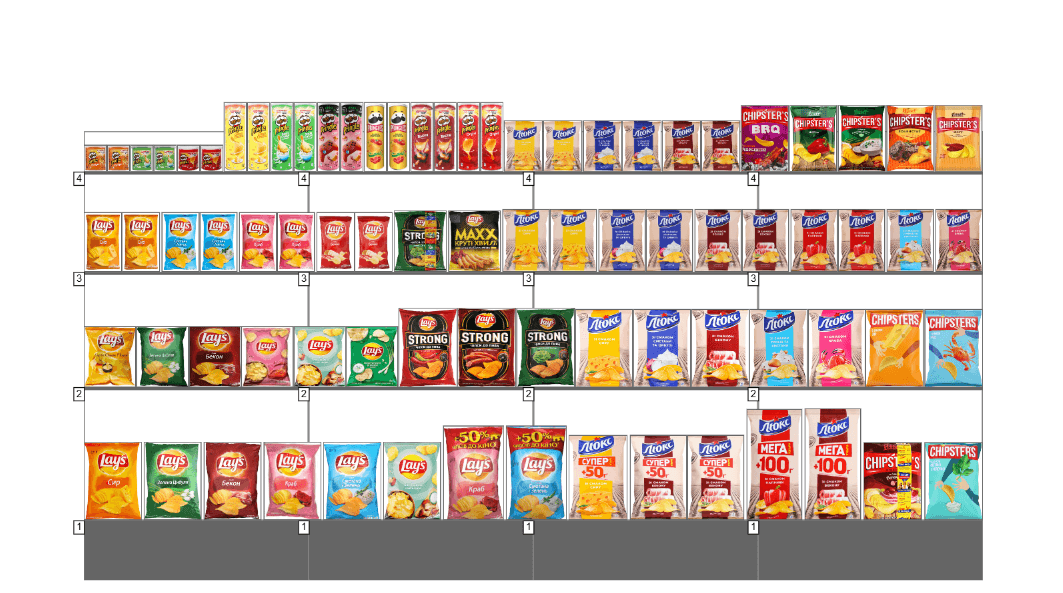
For convenience stores, where shelf space is limited, a well-planned layout is critical. A planogram ensures that every inch of your store is used effectively, helping you:
- Boost impulse purchases by placing high-demand items in key spots.
- Optimize product placement so your top-selling and high-margin items get maximum visibility.
- Maintain layout consistency across multiple store locations.
Pro Tip: Use heat map in PlanoHero to identify high-traffic zones in your store and prioritize high-margin items in those areas.
Why is a Planogram Important for a Convenience Store?
Without a plan, shelves can become cluttered or poorly organized, leaving potential sales untapped. Here’s how a planogram can transform your store:
- Improved Customer Experience: Shoppers can easily find what they need, leading to faster checkouts and happier customers.
- Increased Sales: Strategic placement of items like snacks, beverages, and seasonal products encourages more purchases.
- Better Inventory Management: Planograms help you allocate shelf space to best-selling items, reducing overstock or out-of-stock issues.
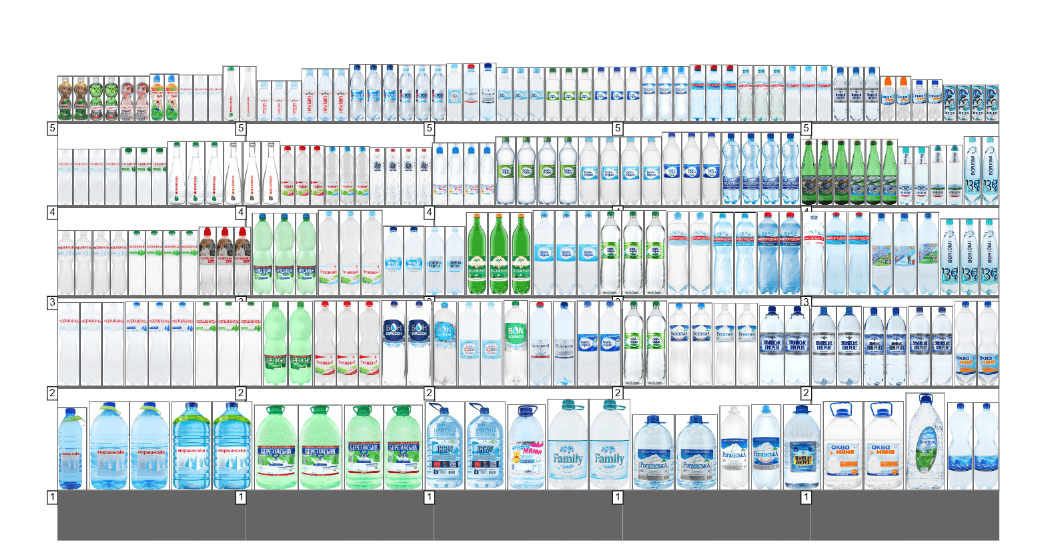
Example: Imagine you're managing a c-store and notice that bottled water isn't selling as well as expected. By analyzing your planogram, you discover that water is tucked away on the bottom shelf near the back of the store. You update your planogram to reposition the water at eye level in the beverages section and near the checkout area for added visibility. Within days, sales of bottled water increase significantly. That's the power of a planogram: it lets you use shelf space strategically to drive results, backed by data and thoughtful organization.
C-Store Planogram Categories
Convenience store planograms are typically organized by category, since each group of products has its own shelf logic, turnover rate, and customer behavior. Common categories include:
- Packaged beverages — sodas, energy drinks, and bottled water usually get prime cooler space near eye level and close to the checkout, since they're high-frequency, high-margin purchases.
- Salty snacks and candy — chips, candy bars, and gum are classic impulse-buy categories, often placed near the register or at the end of aisles to maximize visibility.
- Dairy and fresh/grab-and-go — items like milk, yogurt, and ready-to-eat food need planograms that account for shelf life and require more frequent restocking checks.
- Tobacco and vape products — a heavily regulated category that requires strict compliance with local placement and age-verification rules, in addition to standard merchandising logic.
- Foodservice (coffee, hot food, fountain drinks) — usually planned separately from shelf planograms, but still benefits from clear signage and layout planning to keep traffic flowing.
Because these categories behave so differently, a single generic layout rarely works — each one needs its own placement logic within the overall c-store planogram.
Signs It's Time to Update Your Convenience Store Planogram
A planogram needs regular maintenance, not just a one-time setup. Here are signs your current c-store planogram may need a refresh:
- Products are out of stock or overstocked. If certain shelves are constantly empty while others sit full, your planogram isn't matching real demand.
- Sales in a category are declining. A drop in performance in categories like snacks, beverages, or coolers often means the layout no longer reflects what customers actually buy.
- Customers struggle to find what they need. Confused shoppers and slower checkout lines are a sign that your current layout doesn't match how people actually move through the store.
- You've added new or trending products. If new SKUs don't have a clear, optimized spot on the shelf, they won't get the visibility they need to sell well.
- Your store layout or traffic flow has changed. A remodel, new equipment, or a shift in foot traffic direction can make an old planogram outdated almost overnight.
If any of this sounds familiar, it's a good indicator that your planogram needs updating — and that manually adjusting it in spreadsheets will only get harder as your assortment grows.
How Does a Planogram Work?
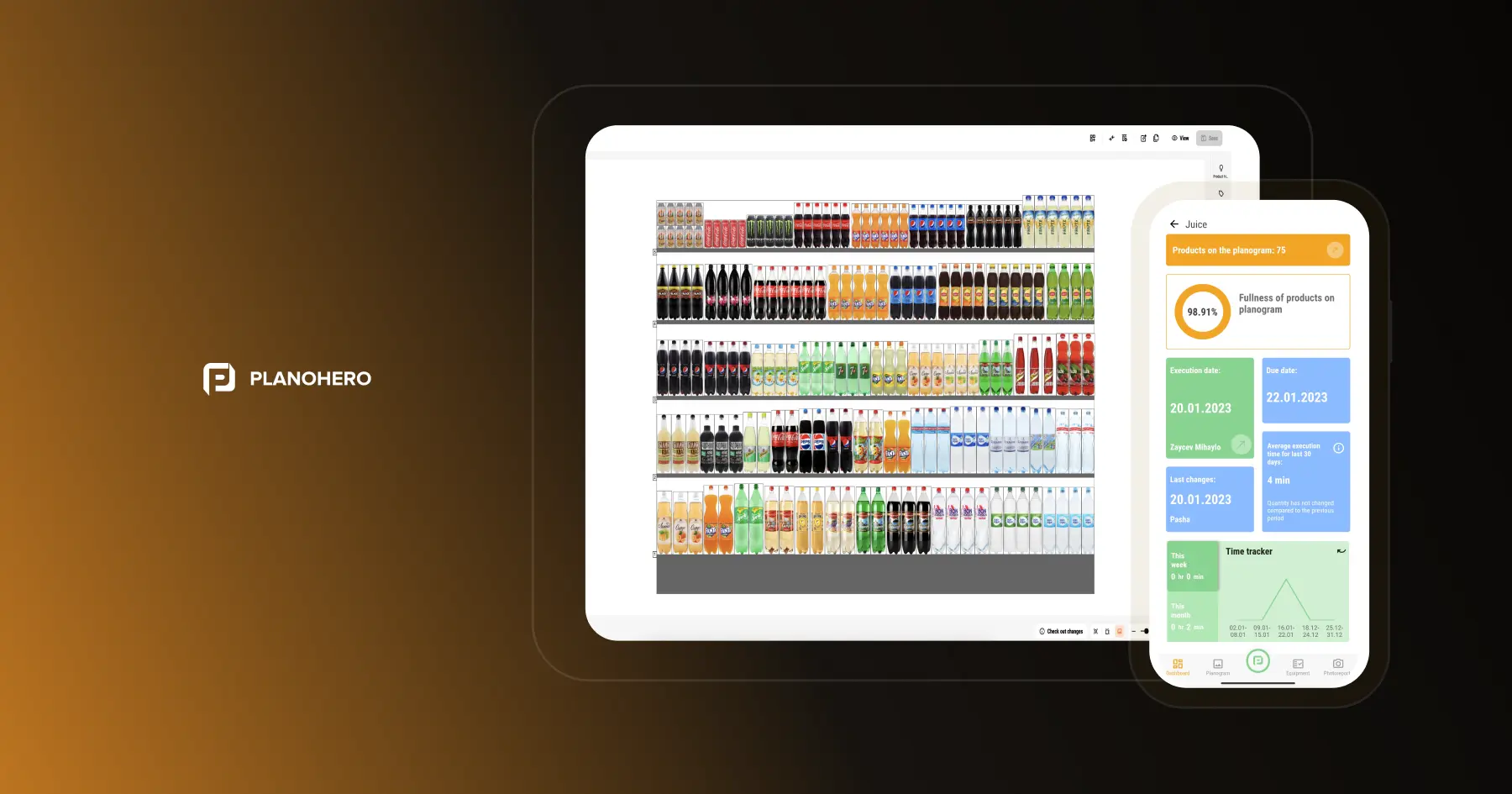
A planogram guides where every product goes and how store managers execute that layout day to day. Instead of guessing where products should be placed, store managers have access to planograms to follow via the mobile app. After completing the layout according to the planograms, they generate a photo report in the app and send it to the central office for verification. The office then checks the execution of the planograms and, in case of errors, sends them back to the store for re-execution. In addition, with the help of the PlanoHero software, the central office can analyze the effectiveness of planograms, plans, and store products. This allows you to control how well the formed layouts work and what needs to be changed.
With the right planogram, every inch of your convenience store works to boost sales, improve organization, and make shopping easier for customers. The same data-backed placement logic applies whether you're running one location or a multi-store chain, though larger chains typically need software to keep layouts consistent across sites.
How to Create a Convenience Store Planogram (Step-by-Step)
Creating a planogram for your convenience store may seem overwhelming, but with the right tools and process, it becomes a simple and highly effective way to optimize shelf space, improve product visibility, and increase sales. Follow this step-by-step guide to build an efficient planogram that works for your store.
Step 1: Set up your store plan and fixtures
Before placing products on the planogram, you need to create the equipment on which they will be displayed. This includes shelves, racks, refrigerators, cabinets, boxes, pallets, display cases, etc.
- Build a store plan in the PlanoHero Builder or download a ready-made one from AutoCAD.
- Accurately measure the fixtures to match the store plan.
- Use pre-made equipment templates or create your own with the Fixture Builder in PlanoHero planogram software.
- Consider different types of displays - hanging hooks, boxes, shelves, and refrigerators - according to the products you sell.
- Place the created fixtures on the store plan.
Expert tip: If using a planogram software, make sure it allows for easy customization of fixture dimensions to match your store’s real plan.
Step 2: Product List
To start displaying your store's products, you first need to create a product database in your planogram software. Import product data by uploading Excel files containing product information (available in the free demo version (up to 1500 SKUs) and the Lite plan (up to 5,000 SKUs)).
In the free demo version, you can also use a test assortment of products with up to 1800 SKUs.
Don't worry if your products are missing images or dimensions. PlanoHero has a built-in electronic product catalog, Listex. If your products are in a food group, upload barcodes, and the system will automatically add dimensions and images from the Listex catalog database.
Step 3: Strategic placement of products on the planogram
After you have prepared a list of products, it's time to strategically place them on your digital planogram.
- High-margin products should be placed at eye level for maximum visibility.
- Best-selling products should get more shelf space to prevent shortages.
- Fast moving items such as gum, candy, and soft drinks should be placed near the checkout.
- Use cross merchandising by placing complementary products together (for example, chips next to soda).
Tip: If you are using PlanoHero or similar software, use sales data to automatically adjust product placement based on turnover and profitability.
Step 4: Use planogram software for faster, smarter layout planning
Drawing displays manually or in Excel takes time and leaves room for error. Planogram software automates and optimizes the layout instead. PlanoHero, for example, offers a free 14-day demo as a basic starting point.
Core functionality with the Lite subscription can help you create planograms, edit layouts, and download ready-made planograms ($199).
Advanced functionality of PlanoHero Enterprise plan: allows you to create a layout on a planogram using your own Layout Rules, control the planogram execution in stores and analyze the effectiveness of active planograms.
Using the automatic placement function based on artificial intelligence, PlanoHero allows you to automatically fill shelves based on historical sales data and your own display parameters.
Pro tip: Choose a planogram tool that consolidates the entire planogramming process into a single system.
Optimize Your Planogram with Auto-Layout Features
Some planogram tools, like PlanoHero, offer auto-layout options that streamline shelf organization. These include:
1️⃣ General Auto-Layout: Evenly distributes all products across available shelves.
2️⃣ Sales-Based Auto-Layout: Arranges products based on historical sales performance, prioritizing top-selling items.
3️⃣ Brand or Category-Based Auto-Layout: Organizes items according to brand or category share, ensuring a fair distribution.
Golden Shelf Tip: High-turnover products should always be placed on the “golden shelf” (1.2m–1.7m height) to maximize sales potential.
Step 5: Test, Adjust, and Track Performance
Once your planogram is set up, it's time to test and fine-tune it to maximize effectiveness.
- Monitor sales data to see which products are performing well in their assigned spots.
- Make adjustments based on inventory levels, customer feedback, and seasonal trends.
- Track planogram compliance with photo reports in the PlanoHero app, ensuring that staff are following the real store layout.
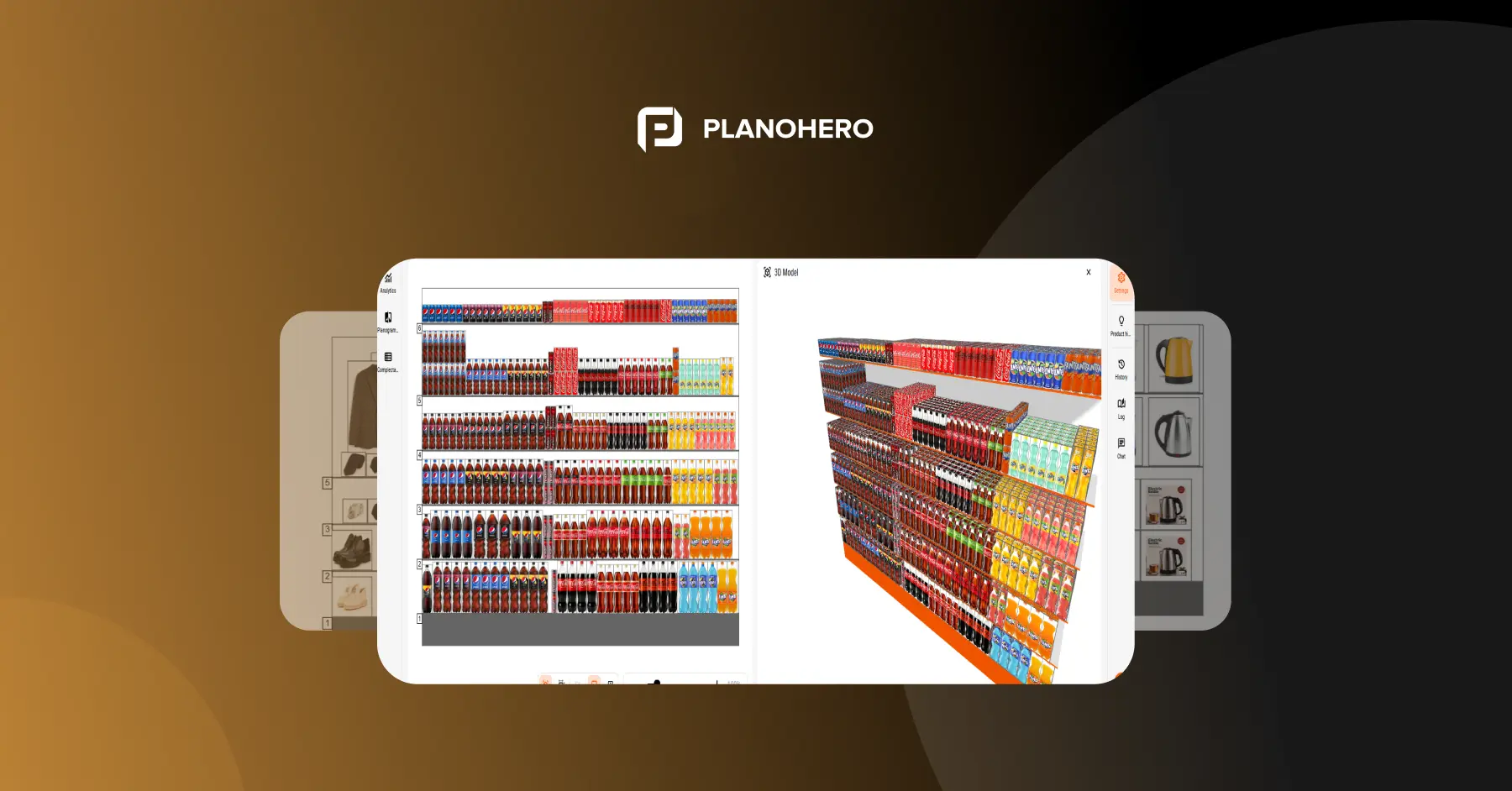
Using the PlanoHero mobile app, the store manager can view the planogram in augmented reality to visualize the shelf layout from different angles before implementing the planogram in the store.
One last tip: Save time by using the copy planogram function and Display Rules to duplicate successful displays across stores and applications.
This might be helpful: Examples of planograms with configuration
Next step: Put Your Planogram into Action!
With the right planogram strategy and tools, you can optimize shelf space, improve customer experience, and boost sales effortlessly. The key is to continuously test, measure, and improve your store layout.
Frequently Asked Questions About Convenience Store Planograms
What is the best layout for a convenience store?
A grid layout works best for most convenience stores. It uses parallel aisles with shelves on both sides, which maximizes product visibility and creates a clear, fast path for customers who are shopping on the go.
How often should a convenience store planogram be updated?
Most c-store planograms should be reviewed at least quarterly, and updated whenever there's a seasonal shift, a new promotion, a change in best-selling SKUs, or a store remodel. Planogram software like PlanoHero makes it easy to adjust layouts without starting from scratch each time.
What's the difference between a planogram and a store floor plan?
A store floor plan shows the layout of fixtures, aisles, and walkways in the store. A planogram goes one level deeper — it shows exactly which products go on which shelf, in what quantity, and in what order within those fixtures.
Can I create a convenience store planogram without software?
Yes, it's possible to build a planogram manually in a spreadsheet or graphic editor, but this becomes time-consuming and error-prone as the number of SKUs and store locations grows. Planogram software automates layout creation, keeps data consistent across your chain, and lets you track execution in real time.
What products should go at eye level in a convenience store?
High-margin and high-turnover products, such as popular snacks, energy drinks, or seasonal items, typically perform best at eye level (roughly 1.2–1.7m, often called the "golden shelf"), since this is where shoppers naturally look first.
Looking for a service to create planograms?
Try a free demo version of PlanoHero